
Hard drives and storage
Store items on glass-cased hard drives, install DragonOS, and feed farms through the import and export ports.
Hard drives give a computer real storage. Items, Autocraft programs, DragonBASIC files and an installed DragonOS all share each drive's byte capacity, like files on a real disk.
Drive tiers
| Drive | Platters | Capacity | 64-stack items of one type | RAM cache | Write speed |
|---|---|---|---|---|---|
 1 MB Hard Drive |
1 | 1 MiB | 127 | 64 KB | 640 KB/s |
 16 MB Hard Drive |
2 | 16 MiB | 2,047 | 256 KB | 1.3 MB/s |
 128 MB Hard Drive |
4 | 128 MiB | 16,383 | 1 MB | 2.5 MB/s |
 1 GB Hard Drive |
6 | 1 GiB | 131,071 | 2 MB | 5 MB/s |
Each upgrade recipe uses an empty drive of the tier below. A drive that holds items, programs or DragonOS cannot be used in a recipe: move the items out, delete the programs and uninstall DragonOS first.
The drives are glass-cased. The platters spin while a connected CPU runs; each platter has its own head on the actuator arm, parked beside the platters when idle and swinging over the tracks while the drive reads or writes, with the red light on.
How much space things take
| Data | Size |
|---|---|
| Directory entry, per item type | 4 KB |
| Item that stacks to 64 | 8 KB |
| Item that stacks to 16 | 32 KB |
| Unstackable item | 512 KB |
| Saved Autocraft program | 16 KB |
| Installed DragonOS | 512 KB |
| DragonBASIC program | 1 KB for every started 1,024 characters |
In general an item uses 8 KB × 64 ÷ its maximum stack size. A drive holds at most 4,096 item types. A full drive refuses new data. Every connected drive adds its capacity, and Autocraft spreads its results across them.
Connect drives
Drives connect like real IDE drives: an  IDE Disk Controller Card in an
 Expansion Card Rack, and an
 IDE Cable from the card to
the 40-pin header at the foot of each drive's back. Each cable takes two drives. See
Expansion cards and IDE for the wiring.
Important
A controller is required by default. Without one, the BIOS POST says how many drives are not connected and what to install. A server owner can set
"requireDiskController": falseto let drives placed against the computer work directly, as in older versions; see Configuration.
DragonOS identifies drives by their position, so several drives can share a Redbus address.
The Storage app
Open Storage from the desktop. On the left is the volume list with each drive's capacity bar and state. On the right is one grid of every item on every volume.
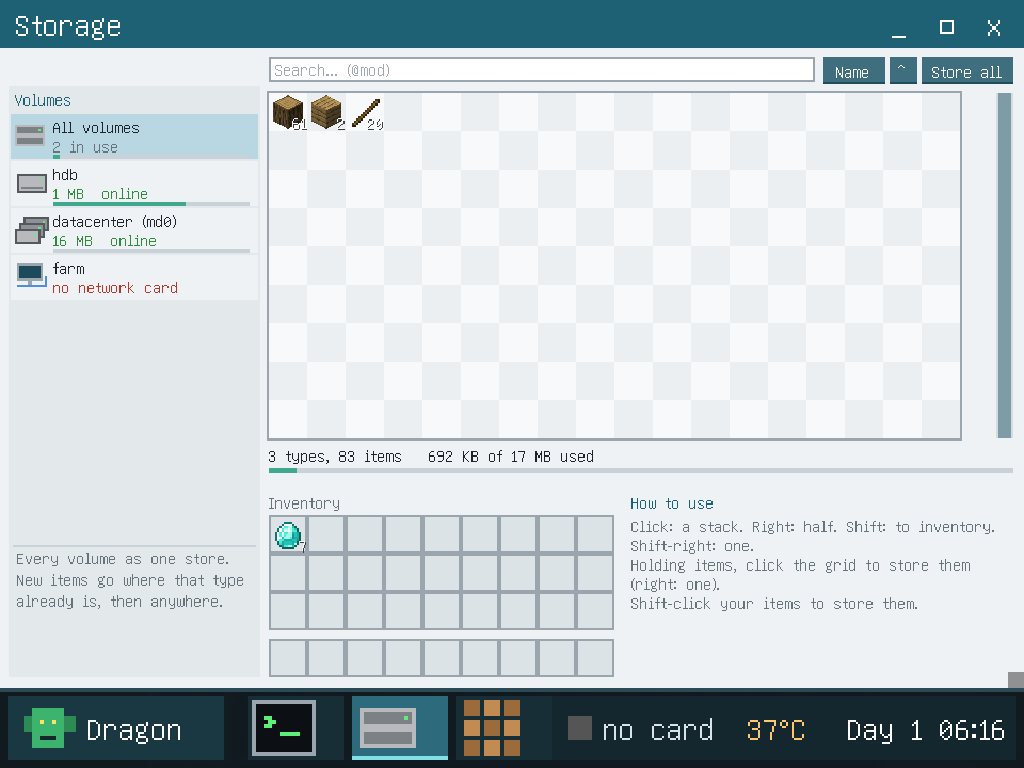
| Action | Result |
|---|---|
| Click an item | Take a stack |
| Right-click an item | Take half a stack |
| Shift-click an item | Send a stack to your inventory |
| Shift-right-click an item | Take one |
| Click the grid while holding items | Store them |
| Shift-click an item in your inventory | Store it |
| Store all | Store your whole inventory except the hotbar |
Search by name, or type @ and a mod name (for example @minecraft) to show one mod's items. Sort
by Name or Count.
Note
A mined hard drive keeps its items, programs and installed system, even when broken by hand. Place it again to get at them.
The write cache
Writes go through the drive's RAM cache, as on a real computer. Stored items, files, programs and DragonOS land in the cache at once; the heads then copy them to the platters at the drive's write speed. The Storage app shows how much is still being written. Nothing in the cache is ever lost, and a Storage Import Port waits while a drive's cache is full.
Install DragonOS on a drive
- Boot from the DragonOS System Disk.
- Open Storage and select the hard drive in the volume list.
- Click Install DragonOS. Keep the System Disk in a connected floppy drive until it finishes.
The drive needs 512 KB free. Afterwards you can remove the floppy: the BIOS boots a bootable floppy first and otherwise falls back to the hard drive. Remove DragonOS frees the space again.
Import and export ports
- The cyan
 Storage Import Port takes items from hoppers and Fabric item
transport and writes them to the drives.
- The orange
 Storage Export Port sends items out of the drives. Put a hopper
under it. A full export port waits for space.
Both are beige drive-bay machines. DragonBASIC's EXPORT and the shell's withdraw send items to an
export port; the shell's storage import routes an import port to a chosen volume. See
Autocraft for a complete farm.